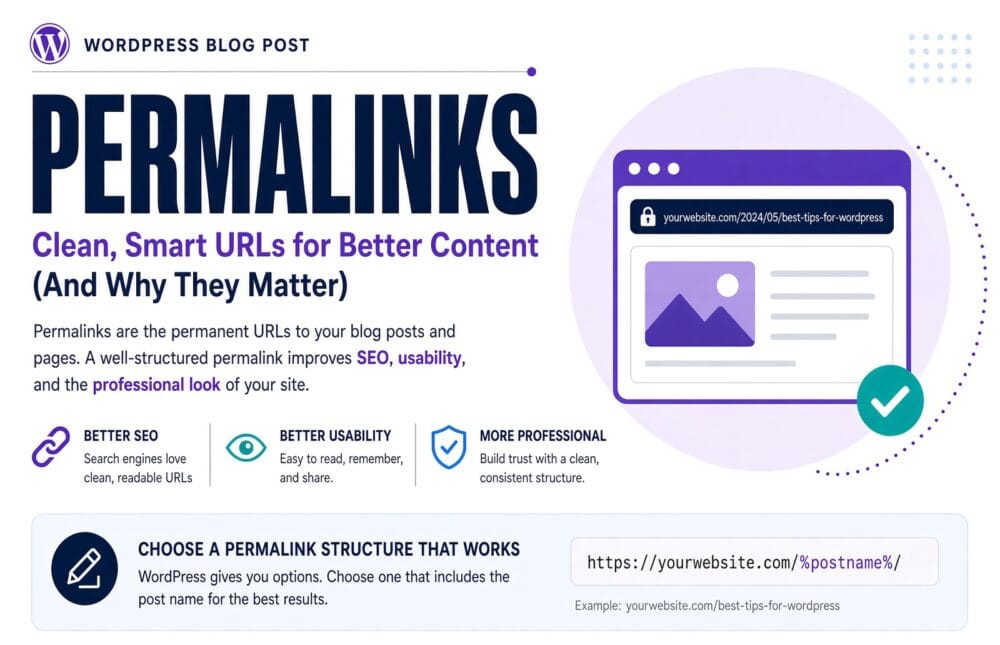
On the WordPress dashboard, under Settings, there is a page called Permalinks. The page contains six radio buttons representing different ways you can structure you site’s permalinks. There is no explanation of why you would choose one option over another, and more importantly, there is no indication that this is an important issue. It is, and this post will tell you how to set permalinks up on your site.
Permalinks is a WordPress setting that gets dramatically more expensive to change the longer you ignore it. By the end of this blog post you’ll have chosen a permalink structure deliberately, and understand why. You’ll also know how to change permalinks without losing anything you have already built.
What a permalink actually is
A permalink is the permanent address for a piece of content on the internet. The permalink for this web post, for instance, is wp4newbies.com/how-to-set-up-wordpress-permalinks-and-why-you-should/. Permanent is the operative word, and you should attempt to treat permalinks as such.
WordPress URLs operate differently than the files and folders on a personal computer. A web address of yourwebsite.com/blog/this-is-a-postblogthis-is-a-postwp4newbies.com/?p=3786), but WordPress’s rewrite rules translate that into the SEO- and human-friendly address wp4newbies.com/how-to-set-up-wordpress-permalinks-and-why-you-should/.
The biggest problem with the URL of wp4newbies.com/?p=3786 is that it tells the reader nothing about what is going to be found at that URL when a user clicks it. This is bad for SEO. Google prefers “pretty” permalinks, as in descriptive ones. They are also easier for humans to remember and share with someone, compared to a numbered post. This is the same principle involved in the DNS lookup system, which translates machine- or AI-friendly IP addresses into human-friendly domain names.
Why the choice is expensive to reverse
A URL is an identity. Once a post has one, and that address has been indexed by Google, there is a cost to changing it.
Imagine someone bookmarking a specific post on your site, or someone else posting it to social media, or someone sharing it with someone in a Telegram chat. If you then change your permalink structure, you have invalidated all of those links. They can no longer resolve, and anyone who clicks them will get a 404 page not found error. Links to your site from other sites are the hardest things to acquire.
Links that no longer resolve to your website can be fixed, but it’s work you can avoid by spending five minutes now choosing your permalink structure with intention rather than guessing.
1. Choose post name as your permalink
- Go to Settings → Permalinks.
- Choose Post name. Your URLs become
yoursite.com/post-title/. - Click the Save Changes button.
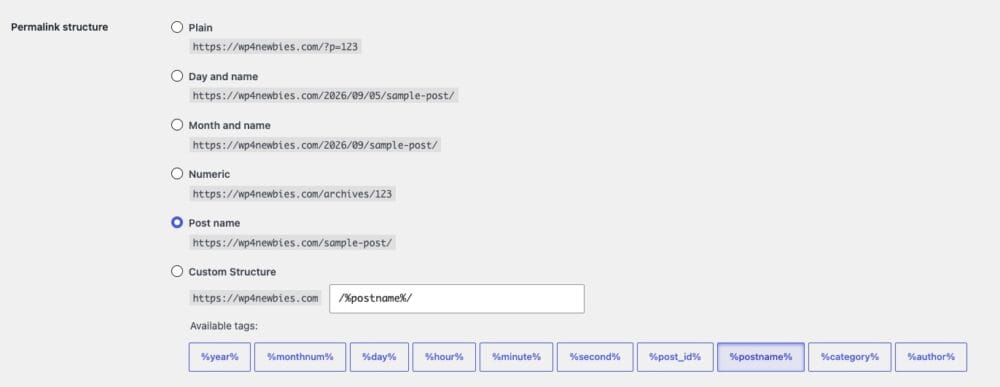
For almost all websites, this should be the permalink structure used. Why? It’s descriptive and good for SEO, and it allows an infinite number of variations for your blog posts.
The plain and numeric options aren’t a good choice in terms of SEO; they do a lousy job signaling to visitors what will be found if they click on that URL. Permalinks with dates, on the other hand (Day and name or Month and name) make old content look dated, even if the subject is relevant and current today. This is also bad for SEO.
Date-based permalink structures are an appropriate choice if you’re starting a news blog with daily reporting. In this case, the date genuinely becomes part of their keep on news sites, where the date genuinely is part of the story. For evergreen how-to content, they actively work against you. Tutorials get updated, and their URLs shouldn’t advertise a birthday.
2. Decide whether your blog is separate from the rest of your website
With Post name selected, posts live directly at yoursite.com/post-title/. Some sites, however, want their blog to remain separate from the rest of their site. Thus they would prefer yoursite.com/blog/post-title/ instead, for instance.
We believe a post that lives as close to the root domain as possible is better as a default, but if there’s a business reason for your blog to be separate from the rest of your site, then use the Custom Structure permalink option, and type in the word you want to use for your blog. Maybe it’s research or news: /news/%postname%/.
Note that this is separate from a page listing your blog posts, that can live at yoursite.com/news/ while keeping the Post name permalink structure. That’s a common and sensible arrangement.
3. Look at the category and tag bases
Further down the same page are two optional fields: category base and tag base. Left blank, then your website’s category archive will be at /category/your-chosen-category-name/ for each category you create on your website.
You can change that to something like /topics/, or remove the word category altogether — though, removing it requires care, because it creates a chance of collision with page slugs. For instance, if you have a page at /getting-started/ and a category called /getting-started/, one of them loses.
The safe advice is to leave the category and tag bases unaltered, since this is a small optimization with a real chance of breaking something.
4. Check that it worked
The Save Changes button on the permalinks setting page makes real, substantive changes to your website’s files, so don’t forget to press it. Forgetting to means anything you changes on this page is lost. Clicking it can solve some real-world problems on your site, also.
If you’ve already published
Say you have fifty posts on a date-based structure and you want to move to Post name. It’s doable, but it isn’t free.
Decide whether it’s worth it. If the site has meaningful traffic and rankings, the honest answer is often no — a suboptimal URL structure costs you very little compared to what a botched migration costs. If the site is new and quiet, change it now while it’s cheap.
If you’re going ahead:
- First back up your database and files.
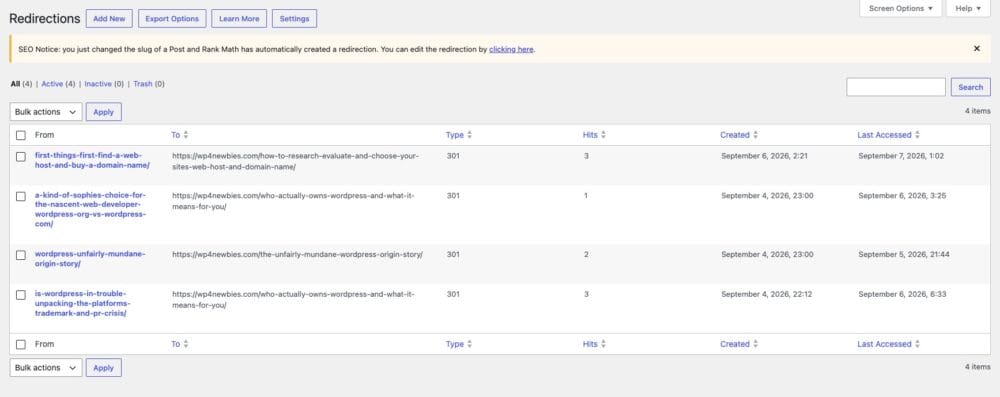
- Install a redirection plugin. We like using the redirection manager built into the free version of the Rank Math SEO plugin, but it is turned off by default. You can turn it on from Advanced mode in the Rank Math dashboard. Once the module is on, a tab for Redirections will be present in Rank Math’s general settings. From there you should turn on Auto Post Redirect, but that only monitors for individual slug changes. In order to redirect changes to permalinks, which affect all live posts on your website, you need to create a regex rule, which we will do as soon after changing permalinks as possible.
- Change your permalinks in WordPress’s settings. Once you hit the Save Changes button, your posts have moved to their new addresses.
- Create the regex rule in Rank Math. You will use the permalinks settings from before and the permalinks settings from now as they appear in WordPress’s Settings.
- Update internal links. Links inside your own posts still point at the old URLs. A search-and-replace tool handles this; do it on a backup first.
- Resubmit your sitemap in Search Console so Google finds the new addresses quickly.
- Expect a dip in your rankings. Rankings wobble after a URL change even when redirects are perfect. It eventually settles.
Troubleshooting
Sometimes problems can arise when changing permalinks:
- If every page 404s except the homepage, that means the rewrite rules didn’t get properly written. We have a fix for that specific situation in our post about permalinks.
- Problems can also occur if a category archive and a page fight over the same URL. This is called a collision. Restore your category base inside Permalinks if you changed or removed it.
- Check your URLs for strange characters. Post slugs come from post titles, and accented or non-Latin characters get encoded. Edit the slug by hand on the post itself — you can set it to anything.
- If your old URLs still work and you expected them not to, then WordPress is doing some redirecting on its own. Set explicit 301s yourself in this case.