
There are slightly less than 60,000 plugins available for download in WordPress’s official plugin directory. They are its “secret sauce” and the reason for its dominance as a CMS. Needless to say, in WordPress, plugins are beloved.
But they’re also a security risk, and can slow down your website. That’s why you should follow these three essential tips for using plugins in WordPress.
1. Treat plugin updates as high priority
Some plugins merely tweak various WordPress settings. Others, however, add completely new capabilities to WordPress, which they are able to do because they’re given enormous access to your website and its data. They aren’t sandboxed like apps on an iPad are, which means they are an inherent security risk and very attractive target for hackers.
According to Sophos, about 13,000 WordPress websites are hacked every day. And according to Sucuri, 92% of those hacks are perpetrated through a vulnerability caused by an outdated or poorly coded plugin. Plugins are one of the biggest vectors hackers use to try to gain access to your website.
The biggest thing you as a WordPress user can do to minimize your vulnerability to these hacks is simply to keep your plugins updated, as well as WordPress core.
Since WordPress is open source, discovered vulnerabilities are a matter of public information. As soon as a plugin vulnerability is made public, a hacker can quickly write an exploit for it. Even if its developer just as quickly writes a patch that fixes the problem, that’s won’t make a difference for any user who hasn’t yet installed said update. The time between an update being available and your installation of that update is the amount of time your system is vulnerable to an exploit targeting it. The goal is for that window of time to be very narrow.
If security is important to you, then you should treat a plug-in update notification as a high-priority action item. Most WordPress users think, “I’ll get around to that later.” With 2,800 attacks on WordPress every second, later may be too late.
2. Reduce the number of plugins you use
Too many plugins aren’t just a security risk, but they can also slow down your website. This is especially true if your site runs on a shared server at a discount web host. Excessive server calls or HTTP requests translate to slower page load times and lower SEO scores.
The problem is, no one can really agree on the ideal or maximum number of plugins a WordPress website should have. No official stance is taken in WordPress’s documentation, either. If plugins are well-written, it seems there’s no limit to how many your website can run.
Not every plugin is well written, though, obviously, and a rule of thumb has emerged that states that over 30 plugins is probably too many, and that a number to shoot for is probably 20 or fewer. Rather than think in those absolute terms, however, start by assessing which plugins your site needs.
Short-term plugins
Quite often, a plugin will be needed for a specific purpose for a finite period of time. For instance, a template plugin isn’t needed past the design phase of your website, and is a good candidate for removal once your site is fully developed and live. Audit your plugins for other candidates for removal.
Plugin developers, of course, have the incentive to make you believe their plugin is “essential,” and can load on extra features to give that impression. During your plugin audit, separate the plugins your site needs versus those that are merely useful, from those that are useful but in practice hardly ever used. That’s your fluff to get rid of.
Redundant plugins
Also audit for multiple plugins that perform more or less the same function. Don’t just make this comparison amongst plugins, though: compare the functionality of your plugins with services your web host offers as well.
For instance, if your web host provides a good, free backup solution, there’s little reason to use a plugin that duplicates this effort. You’ll just be using up resources and slowing down your site unnecessarily. Plus, a backup solution running independently on your server will almost assuredly be better than a backup plugin running from the WordPress cron or invoked from the WordPress dashboard.
Analytics is another area to look at. Your web host may be collecting analytics just as detailed as the Google Analytics plugin would. Below is a screenshot of the analytics provided by the web host Hostinger.
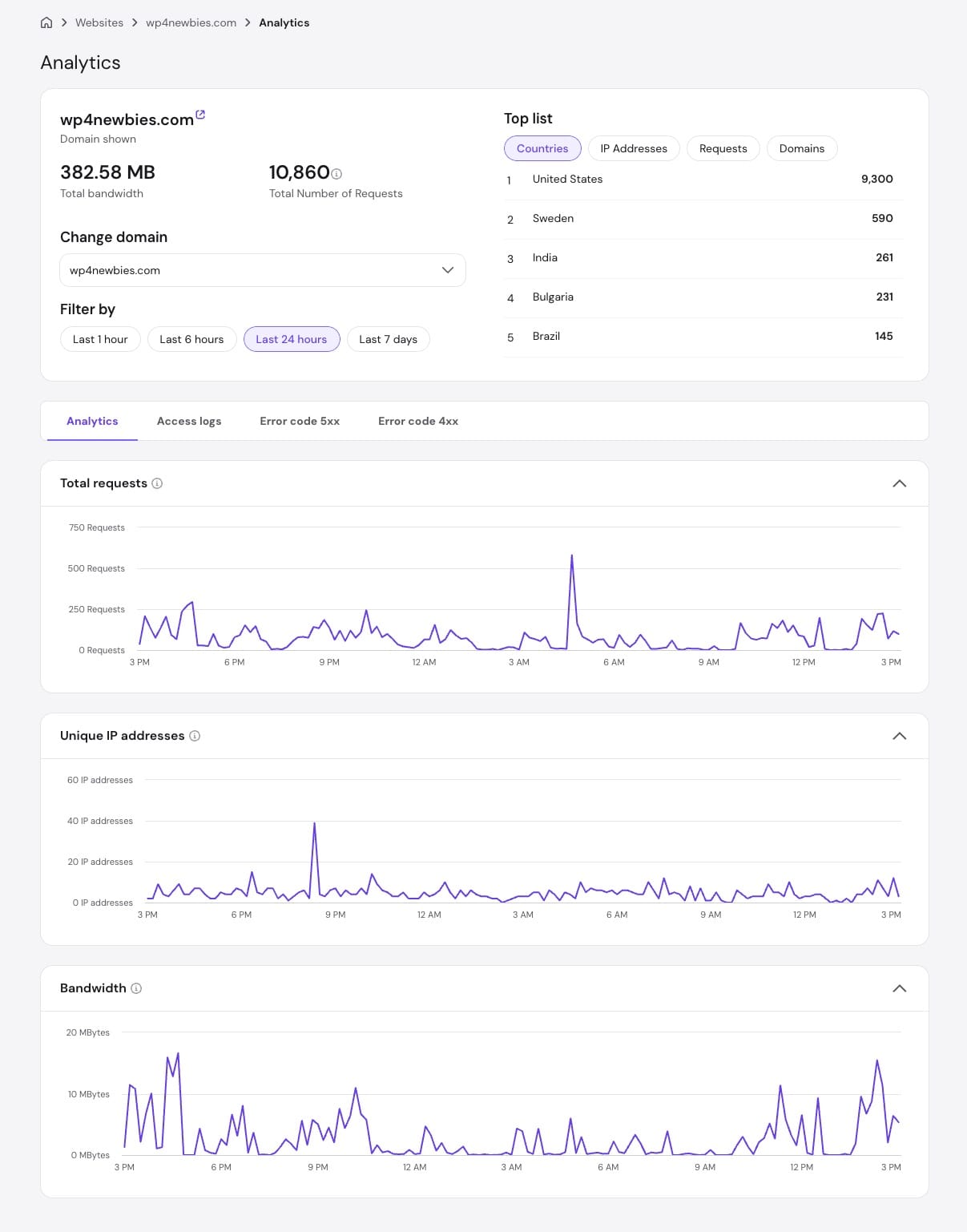
There may be other compelling reasons to have Google Analytics installed, however.
All of the services provided by your web host can be accessed by your website’s control panel, accessible from your web host’s website. The control panel is called cPanel for most web hosts. Hostinger calls its modernized, and arguably, improved, version, hPanel.
3. Remove plugins the “right” way
There are so many free plugins available, and installing them is so easy, that no one can blame you for overindulging from time to time. When you’re done with a plugin, though, make sure you remove it the correct way.
There are at least a couple of ways to remove a plugin: one method is to simply remove its folder, which resides in wp-content/plugins, using an FTP client like FileZilla or CyberDuck or the file manager built into you site’s control panel. The most common method, however, is to deactivate the plugin and remove it via the Installed Plugins screen of the WordPress dashboard.
The second option sounds like the responsible and correct way to remove a plugin, doesn’t it? Unfortunately, it’s no better than simply removing its folder, in that both of these options leave all of the changes and additions to your WordPress database the plugin created when in use. One plugin can create hundreds of new rows and tables in your website’s database.
There’s a valid business reason for allowing these database entries to remain: they store your preferred settings for a plugin. If you spent a lot of time carefully configuring a security plugin, for instance, removing it and reinstalling it later with the database entries intact means you won’t have to go to all that trouble again since your original settings were preserved.
Over time, though, these extraneous database entries add up to detritus that can bloat your database and slow down your website.
For instance, see the below alert from the Health Check & Troubleshooting plugin that shows how leftover database entries had bloated this user’s wp_options table far beyond the WordPress-recommended size of 800kb. This bloat was plugin “litter” that had amassed enough to seriously impact the website’s performance.
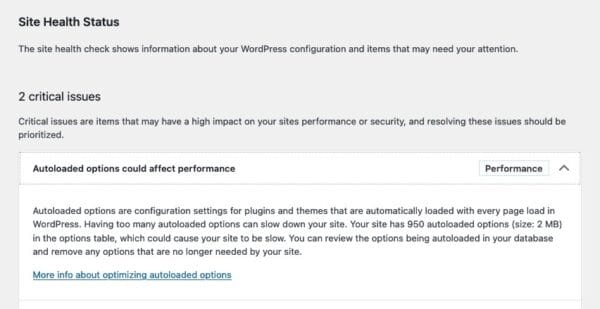
This is the kind of issue that you will eventually have to deal with if you don’t delete plugins completely. So, what is the correct way to remove a plugin? Unfortunately, it varies from plugin to plugin. However, it involves selecting an option in the plugin’s settings related to its removal. Responsible developers tend to make sure their plugin comes with such a setting.
Below is this setting for the WP Mail SMTP plugin, which reads, “Remove ALL WP Mail SMTP data upon plugin deletion.” The setting is turned off by default.
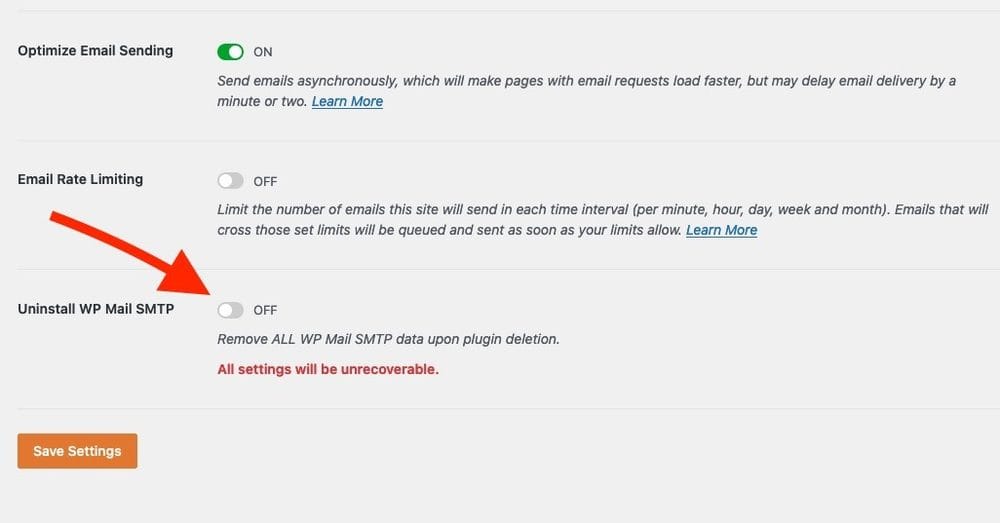
Below is another example of this setting, from the WP-Optimize plugin.
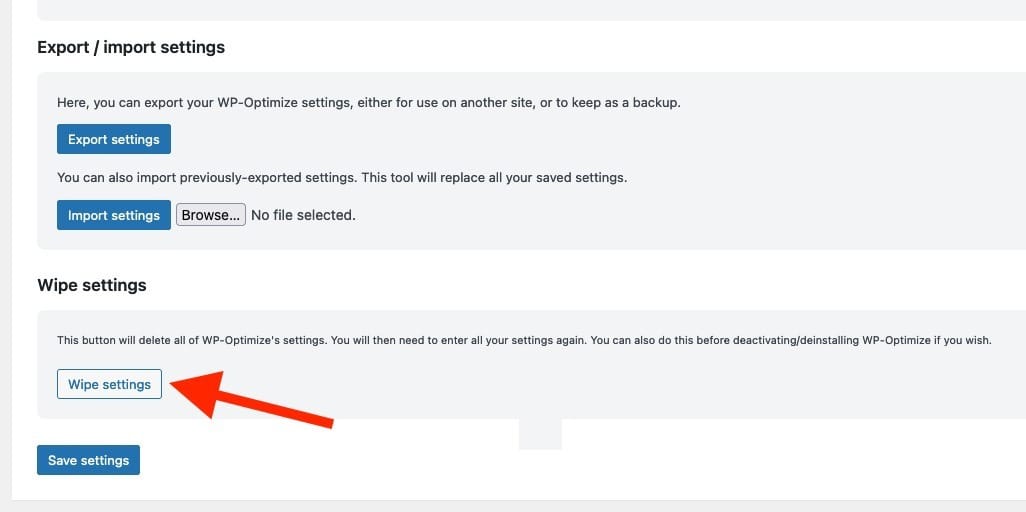
Unfortunately, there’s no standard implementation for the removal of a plugin’s database entries. Hopefully WordPress will hard code the function into the platform, with a standard prompt upon every plugin deactivation. That would be preferable, since not all developers are conscientious enough to add the feature of their own volition.
Manual removal of entries from one’s database can do the job fairly well after the fact. The WP Optimize plugin has a feature for this purpose. Utilizing Claude Code or Codex is another good way to accomplish this objective. It might be stating the obvious, but always back up your database before performing this kind of surgical procedure on a production website.
