

What is a cron job?
A cron job is a scheduled, automated task that runs in the background on an operating system like MacOS or a platform like WordPress. It is simply a list of commands (what to run) and their schedules (when to run). Cron jobs are ideal for recurring administrative tasks like performing backups, sending emails, or executing scripts. In this blog post we explain how to replace the pseudo-cron with a real, server-level cron job in WordPress.
WordPress’ pseudo-cron
You may be aware that WordPress has a built-in cron job functionality called WP-Cron. The problem with it, unfortunately, is that it is actually a pseudo-cron: it only runs when someone visits the website.
Relying on website traffic to initiate maintenance activities or email automation workflows is an unreliable, imprecise, and inefficient way to run a website. On low-traffic sites, automated activities will be delayed or missed entirely if there was no website traffic in a given period. WP-Cron jobs that are delayed may try to run simultaneously when finally initiated, consuming excessive server resources and slowing down page load times for visitor. The user experience and your SEO would have benefited had the automation fired when the website was a ghost town.
In addition to these problems, some tools simply require a precise scheduling of tasks in order to work, or work well. Fluent CRM is one of those tools. It will limp along under WP-Cron, but to really operate as intended it needs a true cron — a server-based scheduler that runs like clockwork.
How to install a server-based cron
It’s s pretty straightforward process to replace WordPress’s pseudo-cron with a true, server-based cron. The process varies slightly depending on the web hosting company you use and the control panel they use for administering websites. The most common control panel is cPanel. Hostinger is the WP4Newbies web host, and it utilizes a slightly more modern control panel that it has dubbed hPanel.
Note that these instructions were current when written, but control panels change all the time, so if you find the menu items aren’t as described, simply search your control panel for “cron jobs.”
1. Disable WP-Cron
First, you must disable the current WordPress pseudo-cron, WP-Cron. This is achieved by adding one line of code to a PHP file that holds the configuration of many settings for your website: wp-config.php. It may be the single most important file for your site, so back it up before editing it. This file lives in the public_html directory of your website.
You can access your website’s server files by dialing in via SSH using the Command Prompt (on a PC) or Terminal (on a Mac); by using FTP software like our favorite, FileZilla, or by using the File Manager software built into your web host’s control panel.
When you open wp-config.php and scroll down you will see a line that reads, “That’s all, stop editing!” Above that line (never below it), type in the following:
define('DISABLE_WP_CRON', true);Save the wp-config.sys file and re-upload it to your website in the same location, the public_html folder. WP-Cron has now been deactivated.
2. Add a server cron job
This next step depends on where cron jobs are located on your web host’s control panel. Luckily, in this case, both cPanel (the most common control panel) and hPanel (Hostinger’s alternative control panel) have cron settings in the same menu location:
Advanced –> Cron Jobs.
In Hostinger’s hPanel, select Websites from the left-most tool bar. Then select your individual website. Then select Advanced from the left interior toolbar, and select Cron Jobs from the pop-down menu.
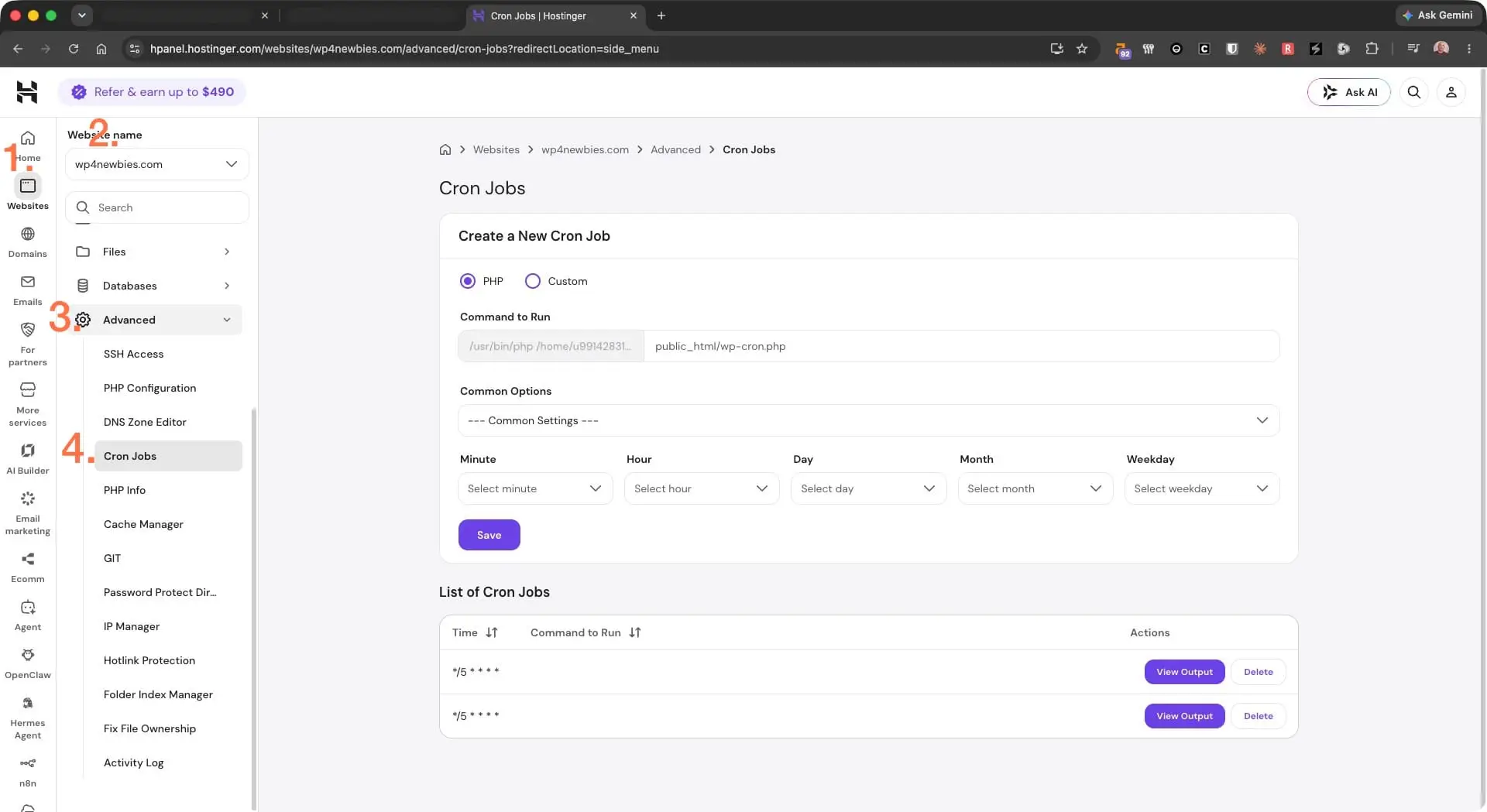
Next, enter the Cron Job command in the Cron Jobs form for the control panel that’s applicable to you.
hPanel command:
The full command is below, but most of it will be pre-filled in the form. Note that YOUR_HOSTINGER_USERNAMEwith be pre-filled with your username, and you will have to swap out YOURDOMAIN.com will be your actual website domain. In the form you only need to type from domains/ on to the end.
The complete command:
/usr/bin/php /home/YOUR_HOSTINGER_USERNAME/domains/YOURDOMAIN.com/public_html/wp-cron.php > /dev/null 2>&1cPanel command:
In the below, replace YOURDOMAIN.com with the domain of the website you’re working with:
wget -q -O - https://YOURDOMAIN.com/wp-cron.php?doing_wp_cron > /dev/null 2>&1Next you need to specify a schedule for your Cron. Every five minutes is standard. The shorthand for every 5 minutes is */5 and then the next four asterisks represent: of every hour, of every day, of every month, of every weekday. In other words, every five minutes, forever.
In full, the schedule reads:
*/5****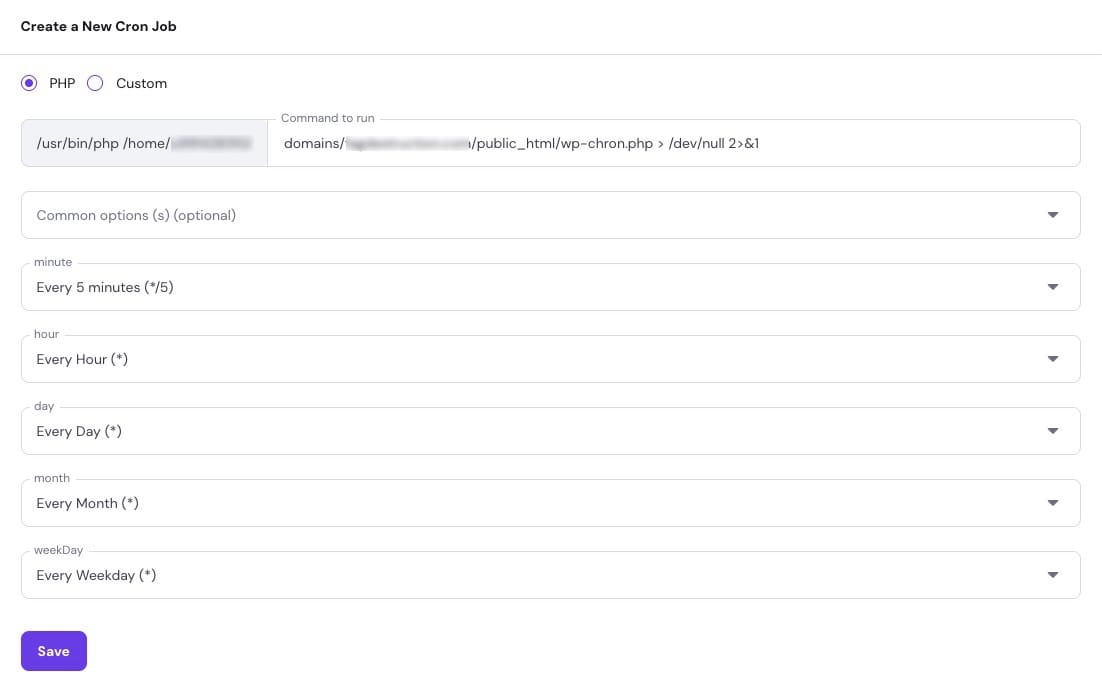
A cron job rate of every minute will stress your web server. An interval of every five minutes is stable, yet polite, which is a must if you’re on a shared hosting plan.
Click Save, then check any scheduled tasks you had pending (Site Health is a good place to check this). If the server cron job was successfully created, you won’t see any missed or skipped events, nor should you in the future.