Are you a WordPress newbie who has been advised to install a plugin, but you’re not completely sure you understand what that means? Fear not, intrepid WordPress warrior, we’ve got your answer here. There is no topic too small or question too basic for us at WP4Newbies. And fear not, because we don’t just describe one way to install a plugin, but three!
What’s a plugin?
Apologies for this blog post’s lead image, above, which is supposed to be a symbolic representation of WordPress plugins. Which is a nice way of saying it’s an image with no basis in reality. Case in point, an actual WordPress plugin doesn’t plug into anything, at least not physically. That’s because a plugin possesses no physicality whatsoever; it’s merely code.
A plugin is a package of code that integrates with a WordPress website to add new features, extend core capabilities, or modify existing functionality without requiring the website owner to write any custom code.
There’s almost no limit to the ways in which plugins can expand upon your website’s core capabilities. They can:
How to install a plugin
The majority of WordPress users install plugins via the WordPress dashboard — the website back end only visible to system administrators. This method allows users to search the official WordPress plugin directory directly without leaving their website dashboard; and once they find what they’re looking for, to easily install that plugin, and, once installed, to activate it.
The benefits of this method are:
Method 1: the official plugin directory
- On the WordPress dashboard, go to Plugins → Add New Plugin.
- Type the plugin’s name into the search box at upper right.
- Check the result carefully before clicking anything. Plugin names are not unique, and the directory is full of similarly named alternatives.
- Click Install Now on the correct result.
- Wait for the button to change to Activate, then click it.
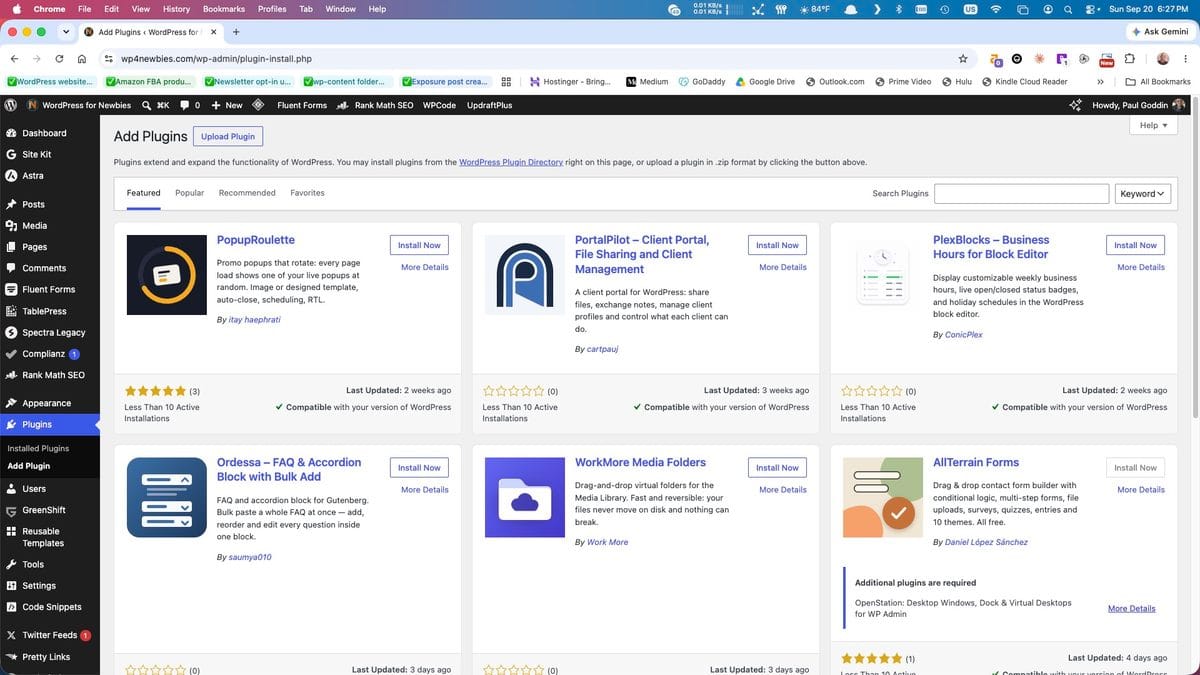
The process that happens in WordPress when you perform the above sequence is simple and straightforward: the plugin *.zip file is unpacked or decompressed, and then the files within are copied to a folder of the same name on your web server, at public_html/wp-content/plugins/. The directory tree for this website’s WordPress installation is shown below. Note the numerous folders within plugins, that correspond to our plugin stack.
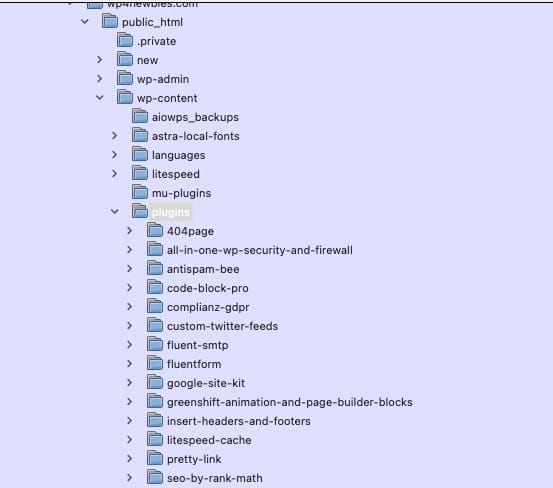
A folder containing a plugin that is placed at public_html/wp-content/plugins/ will be recognized by WordPress without prompting (although it won’t be operational until activated by the user). If you had surmised that installing a plugin only requires the plugin’s files along (with their containing folder) be copied to the plugins folder at public_html/wp-content/ then you would be correct.
Which brings us to the other two methods of installing a plugin. Both involve the same movement of files to your web server.
Method 2: upload a .zip file
Use this method for a plugin you purchased from a developer’s website, and have received from them in the form of a .zip file. This applies primarily to premium plugins, which rarely appear in the plugin directory.
- Download the plugin’s
.zipfile to your computer. Yuo don’t need to unzip it. - From the WordPress dashboard, go to Plugins → Add New Plugin.
- Click Upload Plugin at the top of the page.
- Click Choose File and select the
.zip. - Click Install Now.
- Click Activate Plugin when the upload finishes.
Method 3: use FTP or File Manager to upload the folder and files to your web server
The last method should be used only when the other two have failed. However, this method takes us firmly out of the beginner category, and we do not believe it’s something that needs to be learned at this juncture. We include it here only for the sake of thoroughness.
- Unzip the plugin on your computer. You should end up with a single folder named after the plugin.
- Open your host’s file manager, or connect over FTP. On Hostinger this is in hPanel under Files → File Manager.
- Navigate to
public_html/wp-content/plugins/. - Upload the entire unzipped folder into that directory.
- Go to Plugins → Installed Plugins in WordPress. The plugin now appears in the list.
- Click Activate beneath it.
Regardless of the method you utilized, you should now have an activated plugin on your WordPress website, which will begin to broaden its capabilities. You’ll be surprised what a mere blogging tool can become, just with the assistance of these little pieces of code called plugins.
To find out more about plugins, and since you’re now well versed in their installation, you’ll want to read our lesson on the essential rules for using plugins, which includes instructions for uninstalling them the “correct way.”