
Symptom: The homepage of your website loads perfectly, but every other page you’ve created — every blog post and every individual page such as “About” — produces a “Page not found” message (technically called a 404 not found error message).
The 404 error message would seem to imply that webpages have been deleted from your website or become corrupted. You checked, however, and that isn’t the case at all. Everything is still there in the WordPress dashboard.
So what gives?
Diagnosing the 404 problem
The big clue about the nature of these 404 errors is that your home page still works, but every other page produces the “Page not found” error. Here’s what’s going on:
In WordPress, the website structure seen in a site map — pages with parent and child pages in a hierarchical chart — is unrelated to the physical file and folder structure on the web server. Although you may navigate to the About page by typing in yoursite.com/about/ you won’t actually find an About folder that’s a child of the home folder on your web server. In fact, you won’t find any folder called ‘about’ in the entire WordPress installation.
Instead, WordPress stores all information about each web page and the information they contain in a database. One specific file in your WordPress installation is responsible for building every web page on demand using said database: index.php.
The file index.php contains instructions telling the web server, more or less, to “stop looking for a folder named ‘about’ because it doesn’t exist. Wait for WordPress to tell you where that page is.” These instructions are called WordPress’ rewrite rules.
WordPress’s Rewrite Rules
The homepage of your website is the one page on your site that doesn’t use rewrite rules, because it is located where it “should” be in the site map, meaning the root folder of the WordPress installation. So, if rewrite rules are broken, the home page would be the only page unaffected by the breakage, and every other web page would produce the 404 error. That, of course, is the exact set of symptoms described above in the first paragraph.
So, we know now that the symptoms of this specific issue point to a problem with rewrite rules. To troubleshoot further, we should know where rewrite rules are stored. The answer to that question all depends on the kind of web server WordPress is running on.
On Apache and LiteSpeed servers (which, combined, make up the vast majority of servers running WordPress) rewrite rules are located in a file called .htaccess sitting in the root folder of your website. On Nginx servers, those rules are stored in a server config file that’s not easily editable.
Note: Some of the below fixes involve editing the .htaccess file in a text editor. This is generally safe, so long as you make a backup of the file prior to fiddling with it. In order to even see that file in your file manager, you will have to turn on a setting called “show hidden files.” Files with names beginning with a period or dot (they’re called “dotfiles”) are hidden by default.
Fixing Rewrite Rules
1. Re-save your permalinks
This is the fix that should always come first. Your website’s permalinks are the structure of the URLs for your site’s blog posts. Some website owners like their blog to include the blog post’s category and publication date in each URL, while others want posts organized by author name. Look above in the web address bar of your browser and you will see that on this site we have chosen the simplicity of blog post URLs consisting only of the post’s title.
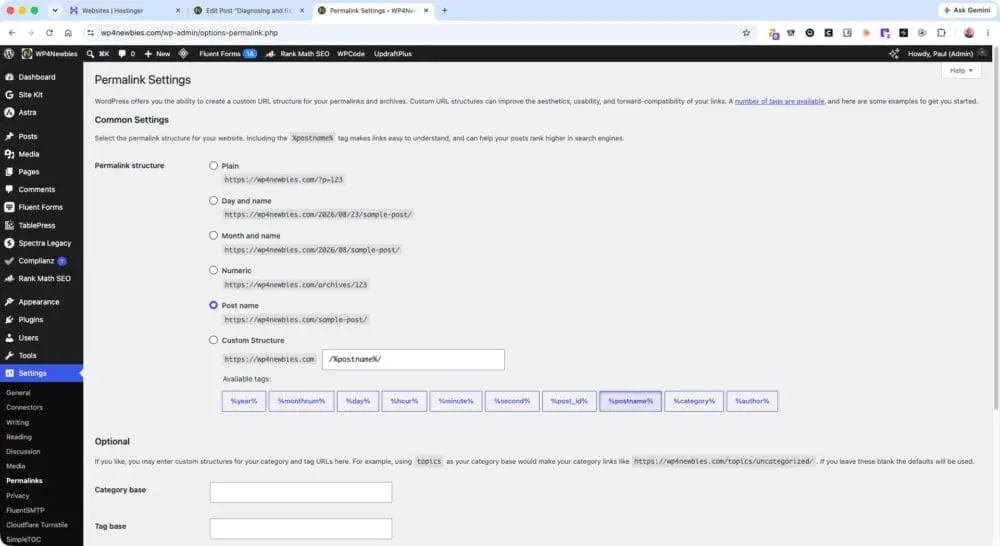
Changing your website’s permalinks changes the rewrite rules and causes them to be regenerated and added to .htaccess. You don’t even have to change the permalink structure — that is a task best performed on the setup of your site and not changed later — but simply save them as-is. Permalinks will be re-written to .htaccess and any corruption will be overwritten.
- Go to Settings → Permalinks
- You don’t have to actually change the permalink structure.
- Click Save Changes
Test the fix by loading your website and navigating to a page.
2. Check that .htaccess exists and is writable
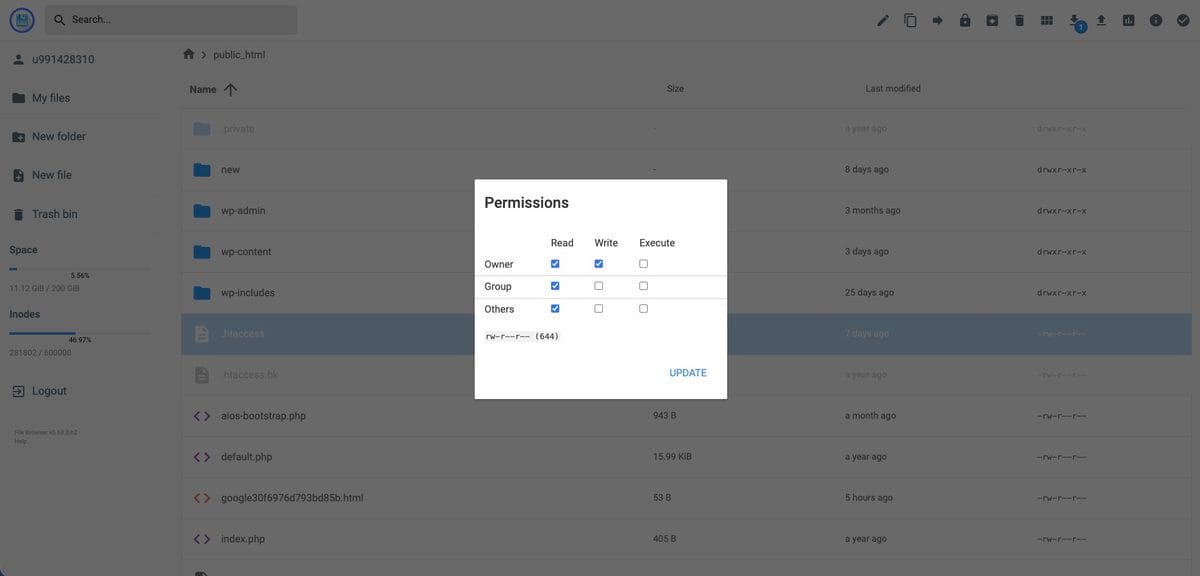
If Step 1 doesn’t work, it could very well likely be that WordPress attempted to write permalinks into the rewrite rules but was prevented from doing so. Two reasons it would fail at this task are if the .htaccess file doesn’t exist at all, or it exists but has incorrect permission and doesn’t have write privileges assigned.
If you haven’t done so already, you should check that your file manager is configured to display dotfiles. In hPanel, click on Files, then click on File Manager, and click on “Access files of [your website name]. On the resulting screen, click on your user name in the upper left corner and Profile Settings will be displayed. Make sure the “Hide dotfiles” option is empty; deselect it if it isn’t.
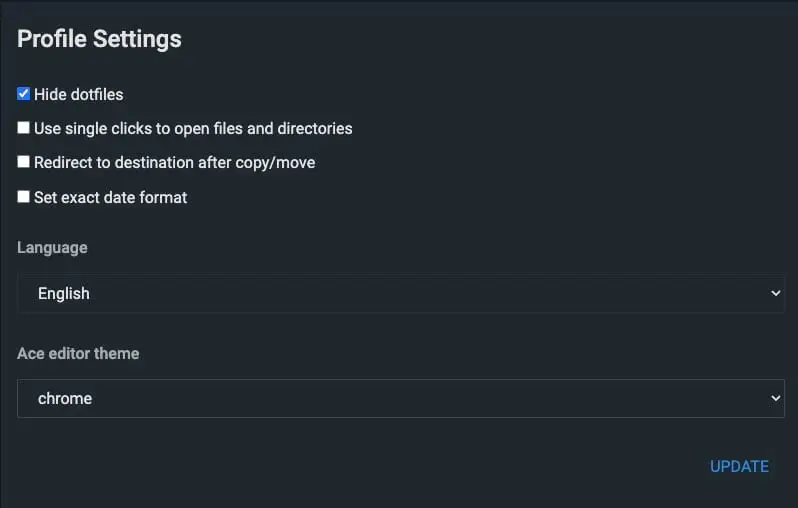
Open your host’s file manager (or connect over FTP) and look in your site root — the folder containing wp-config.php. You’re looking for a file called .htaccess. It starts with a dot, which means many file managers hide it by default; turn on “show hidden files.”
If the file isn’t there, WordPress couldn’t create it. Create an empty file named .htaccess in that folder, then repeat Step 1.
If the file is there, check its permissions. WordPress needs write access to update it; 644 is the normal value. If it’s set to something more restrictive, WordPress will fail silently — no error in the dashboard, nothing in the log.
Set it to 644, repeat Step 1, and test again.
3. Add the rules by hand inside .htaccess
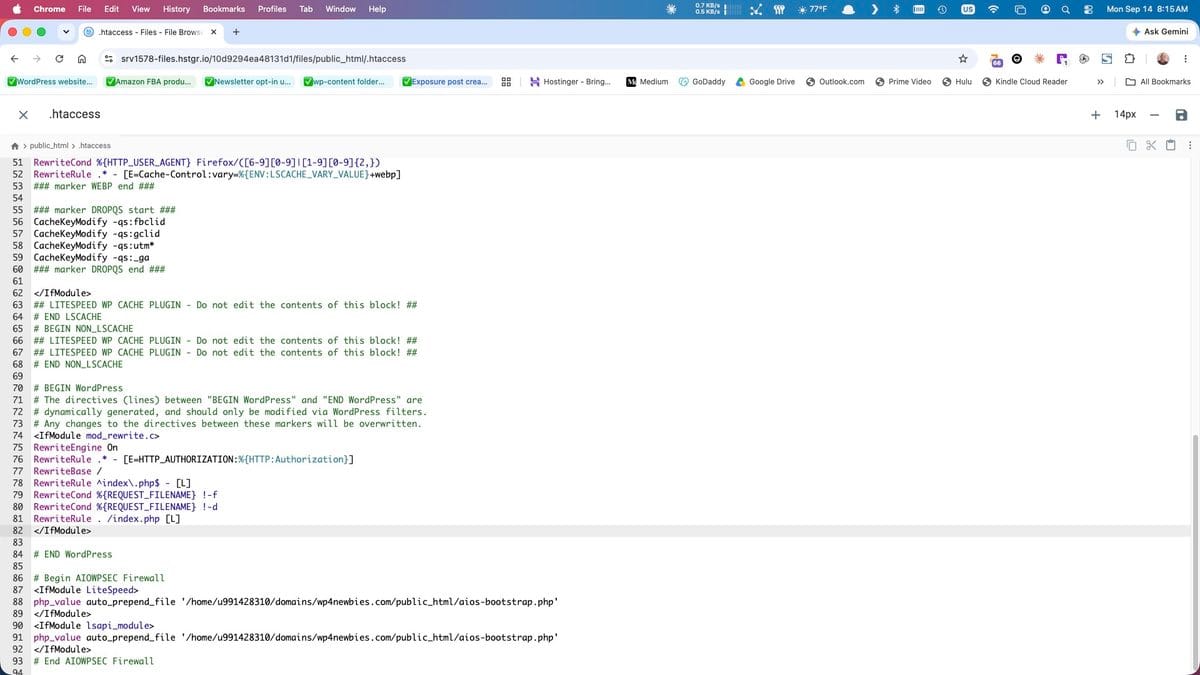
If WordPress still won’t write them, put them in yourself. Open .htaccess and confirm it contains this block:
apache
# BEGIN WordPress
<IfModule mod_rewrite.c>
RewriteEngine On
RewriteBase /
RewriteRule ^index.php$ - [L]
RewriteCond %{REQUEST_FILENAME} !-f
RewriteCond %{REQUEST_FILENAME} !-d
RewriteRule . /index.php [L]
</IfModule>
# END WordPress
That’s the standard WordPress block, and it says what we described earlier: if the request isn’t a real file (!-f) and isn’t a real directory (!-d), hand it to index.php.
If the block is missing, paste it in above anything else in the file. If a plugin has written its own rules, leave those alone — they usually sit below.
Save and test.
4. Check that a plugin or theme isn’t breaking rewrite rules
If the rules are correct and inner pages still 404, something is rewriting URLs after WordPress does.
Deactivate all plugins, then test. If pages load, reactivate one at a time until it breaks. Redirection plugins, security plugins, caching plugins and multilingual plugins are the ones that touch rewrite rules.
If plugins aren’t it, switch temporarily to a default theme like Twenty Twenty-Four. A theme registering a custom post type or taxonomy badly can produce the same symptom.
If it didn’t work
You’re on Nginx. There is no .htaccess and nothing above applies. The rewrite rules live in a server config file, and on managed hosting you’ll need support to add them. Ask specifically for “the WordPress try_files rewrite rule” — that phrase gets you to someone who knows what you mean faster than “my pages are 404ing.”
mod_rewrite isn’t enabled. Rare on real hosting, common on a local dev stack you set up yourself. The .htaccess block is wrapped in <IfModule mod_rewrite.c>, which means that if the module is missing the entire block is silently ignored — no error, just nothing happening.
Only some pages 404. That’s a different bug. If the homepage and most pages work but a handful don’t, look for a slug collision — a page whose slug matches a category base or an existing folder on the server.
It works logged in and 404s logged out. That’s a caching problem, not a rewrite problem. Purge your cache — and if you’re on LiteSpeed, purge it at the server too, not just in the plugin.
It came back a few days later. Something is rewriting .htaccess on a schedule. A security plugin is the usual suspect. Find it before you fix it again.
Next steps
While you’re here: if you haven’t chosen a permalink structure deliberately, do that now — [How to Set Up WordPress Permalinks] — because changing it later means changing every URL on your site.
Next in the troubleshooting series: [How to Fix the WordPress White Screen of Death].