Some of the settings for your WordPress website are harder to find than others, which is the case with the ones that govern the maximum size of a file you can upload to your site. The file size limit is determined by your web hosting server’s PHP configuration settings, which WordPress reports on but doesn’t control.
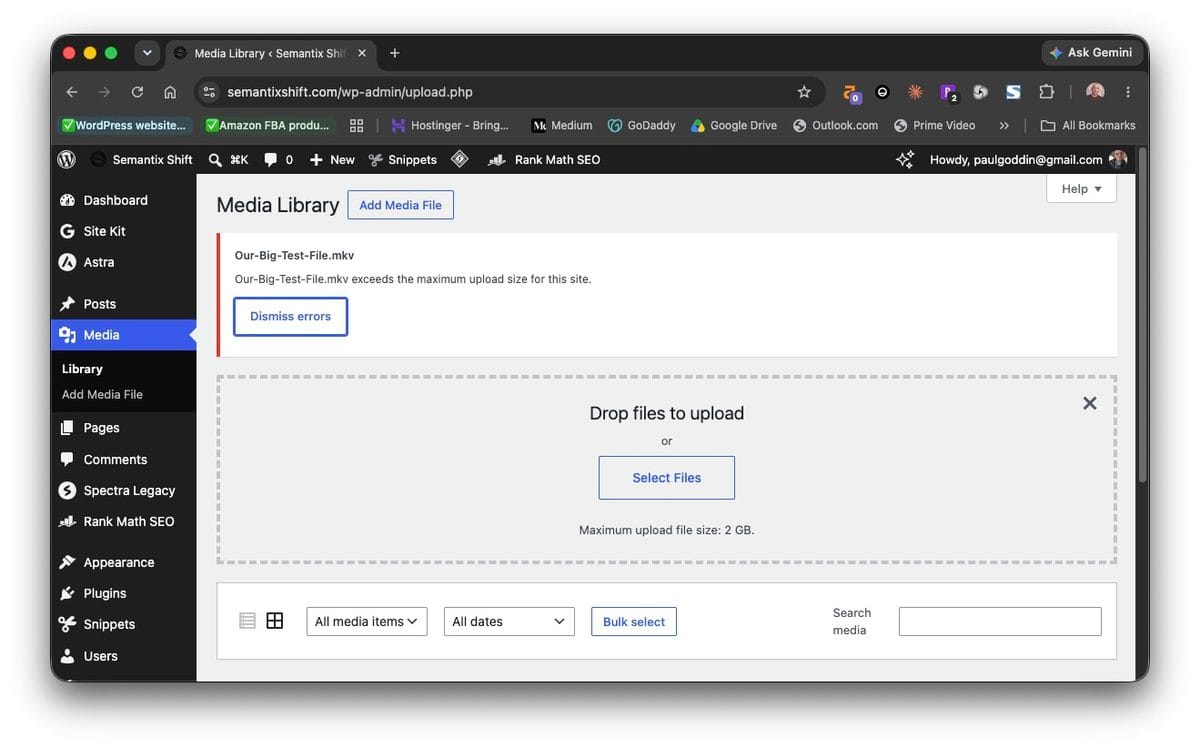
The file size limit can block you from uploading media, restoring backup files, or installing plugins or themes, if they contain files larger than the limit. But in cases like this the reason for the failure is obvious, as shown below.
In other cases, however, the file size limit will produce a vague “HTTP error” that tells the user nothing regarding what caused the problem. In the case of third-party plugins, the file size limit will cause an operation to fail silently. Another outcome that is just as problematic is WordPress’s dreaded “white screen of death.” In all of these instances, detective work is needed beyond the scope of a beginner’s tutorial to determine what caused the problem and whether it was the file size limit.
Knowledge about the limit and being proactive about the limit can help avoid some of these instances. For example, if you know that your website is going to permit users to upload very large files, make sure the current file size limit is appropriate. If not, you can change it. First, we will audit the current limit that’s in place. One of the easiest ways to do that is via the Site Health option, which is accessed from Tools in the WordPress dashboard.
Check your file size upload limit
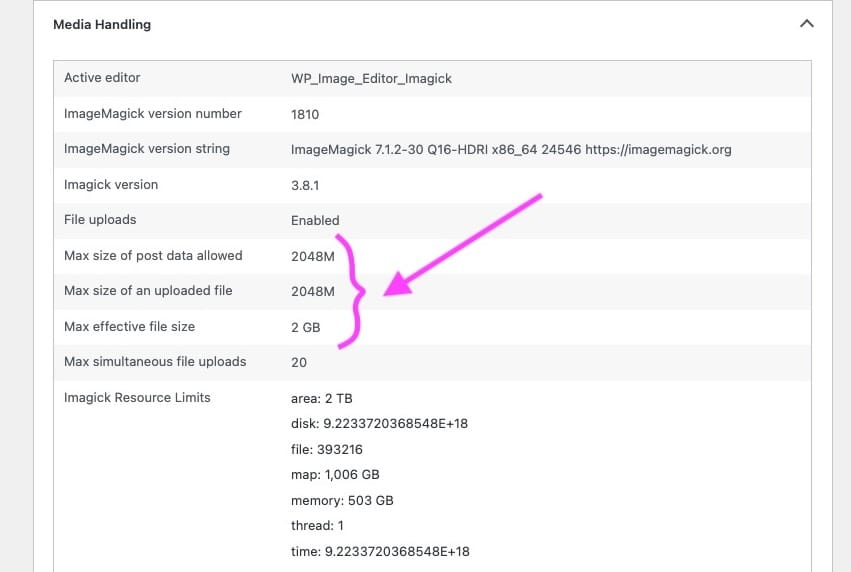
Go to Tools → Site Health → Info and open the Media Handling section. Here you will see PHP settings for your website, and two in particular related to the file size for uploads. They should be identical, but if they aren’t, then the smaller size governs:
upload_max_filesize— the largest single file PHP will acceptpost_max_size— the largest total amount of data PHP will accept in one submission
On the same page scroll down to the Server section and check the memory limit. It should be around the same size or a little larger than the maximum file size settings above:
memory_limit— how much memory a PHP process may use
In the settings for our website — the default PHP settings created by Hostinger — the maximum size of an upload is 2,048 MB, which is equivalent to 2 GB.
Change the limits in your web host’s control panel
PHP settings are best edited via your web host’s control panel. The setting changes will be durable, surviving WordPress updates. The steps to get to the PHP configuration settings in Hostinger’s hPanel are shown in the below video, but should be similar if your web host uses the more common cPanel interface.
Select the website you want to change settings for in hPanel (or cPanel). Select the Dashboard. From the new vertical toolbar that populates, go to Advanced, then PHP Configuration, then choose the PHP Options tab, and scroll down to find the three settings.
Sensible values for a normal website: